Chat
Chat lets you ask questions about your documents using retrieval-augmented generation (RAG). The AI searches your indexed content, retrieves relevant passages, and generates answers grounded in your actual documents.
The curl examples on this page use http://localhost:8080, which is the API port for the multi-container development stack. The all-in-one container (the primary install) serves the API on port 80 instead — use http://localhost/api/v1/... there.
Conversations
Each chat is a conversation with its own message history. You can maintain multiple conversations simultaneously.
Creating a Conversation
- Web UI
- CLI
- Python
- API
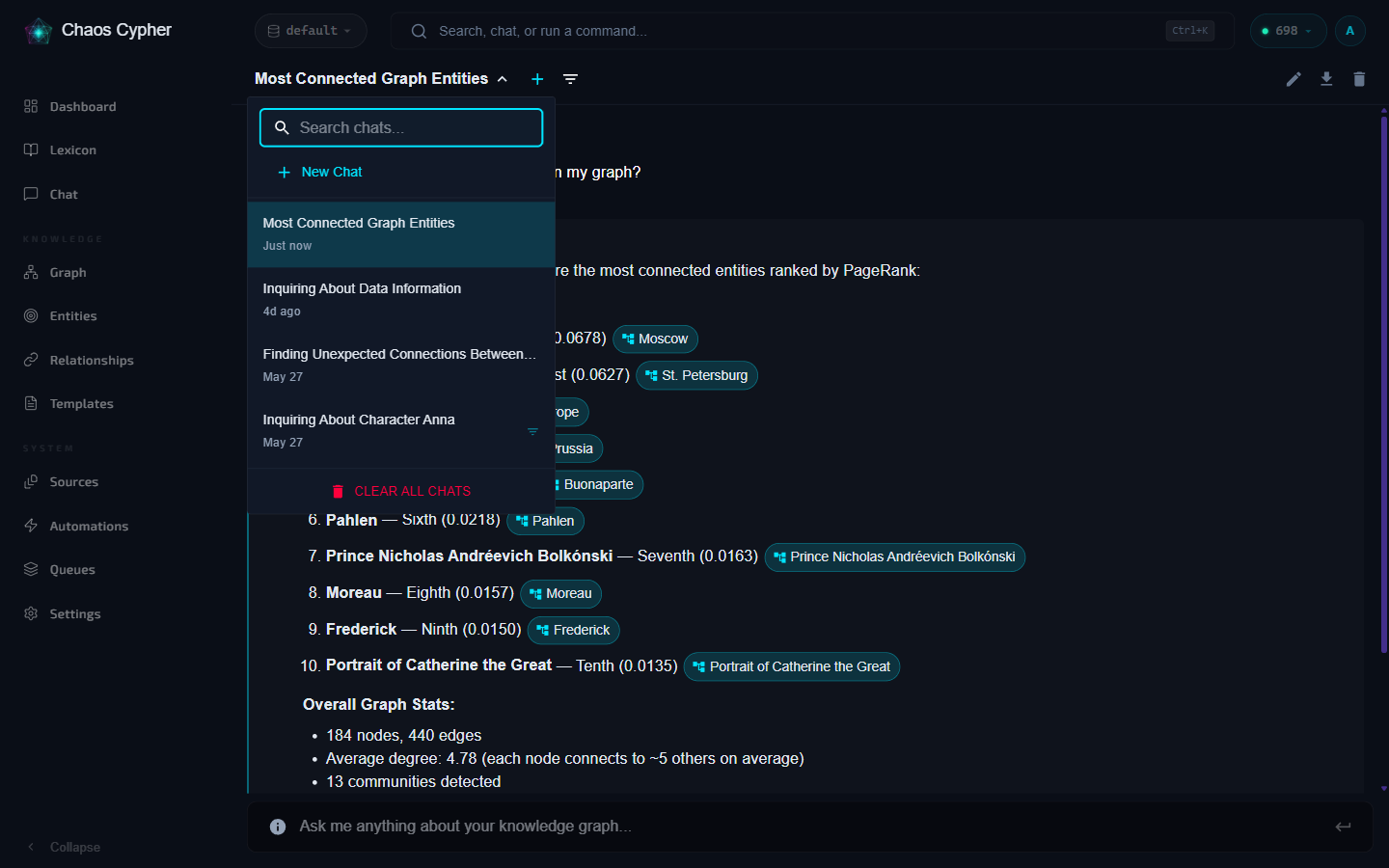
Start a new chat from the conversation dropdown in the chat header bar (the title opens a searchable list of your chats). Give it a title or let the system auto-generate one from your first message.
# Start an interactive chat session (creates a new conversation)
chaoscypher chat

# Or send a one-shot message
chaoscypher chat "What are the key findings?"
from chaoscypher_core import Engine

async with Engine("./data/databases/default") as engine:
    response = await engine.chat("What are the key findings?")
    print(response.content)
curl -X POST http://localhost:8080/api/v1/chats \
  -H "Content-Type: application/json" \
  -d '{"title": "Research Questions"}'
Auto-Generated Titles
After your first message, Chaos Cypher can automatically generate a concise 3-6 word title using a lightweight LLM call. This keeps your conversation list organized without manual naming.
Sending Messages
Type your question and the AI will:
- Search your indexed documents for relevant chunks
- Include the most relevant passages as context
- Generate a response grounded in that context
- Include citations linking back to source documents
- Web UI
- CLI
- Python
- API
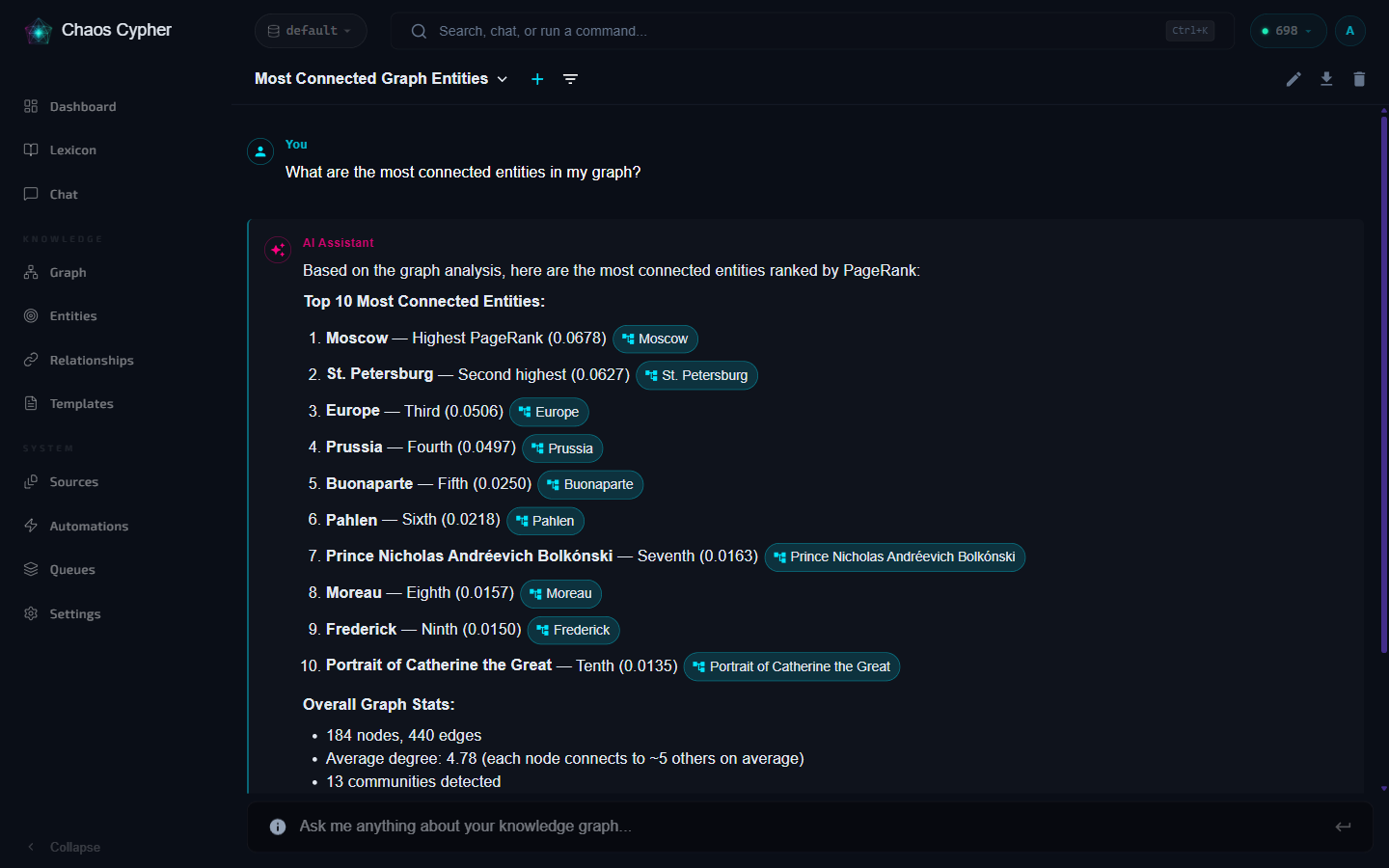
Type your message in the chat input and press Enter or click Send. Responses stream in real-time.
chaoscypher chat "How are the entities connected?"
  → search_chunks(query=entity connections)
  → search_nodes(query=entities)

Based on the knowledge graph, the entities are connected through
several relationship types...

   │ The report identifies three primary connection patterns
   │ between organizational entities.
   └─ quarterly-report.pdf
from chaoscypher_core import Engine

async with Engine("./data/databases/default") as engine:
    response = await engine.chat("How are the entities connected?")
    print(response.content)
Engine.chat() sends the prompt directly to the configured LLM provider — it does not retrieve documents or produce citations. For RAG-grounded chat with citations, use the CLI (chaoscypher chat) or the Cortex chat API (POST /chats/{id}/send + GET /chats/{id}/events).
# Submit a message for background processing
curl -X POST http://localhost:8080/api/v1/chats/{chat_id}/send \
  -H "Content-Type: application/json" \
  -d '{"content": "How are the entities connected?"}'

# Watch the live response (SSE); the answer persists even if you disconnect
curl -N http://localhost:8080/api/v1/chats/{chat_id}/events

# Add a message to the history without generating a response
curl -X POST http://localhost:8080/api/v1/chats/{chat_id}/messages \
  -H "Content-Type: application/json" \
  -d '{"content": "How are the entities connected?", "role": "user"}'
AI Tools
The chat assistant has access to several tools for retrieving information:
| Tool | Description |
|---|---|
| GraphRAG Search | Graph-enhanced retrieval that fuses knowledge graph traversal with vector search. Automatically prioritized when your database has extracted entities. Best for multi-hop questions spanning multiple documents. |
| Semantic Search | Vector similarity search across document chunks. Used for direct content retrieval. |
| Graph Search | Search for specific nodes and relationships in the knowledge graph. |
| Summarize | Retrieves document chunks, clusters them for representative selection, and generates a compressed summary using the LLM. Useful for condensing long documents or sets of sources. |
The system automatically selects the best tool based on your question and the available data. When a knowledge graph with entities exists, GraphRAG is prioritized for richer, more connected answers.
Message Types
| Role | Description |
|---|---|
| User | Your questions and messages |
| Assistant | AI-generated responses with citations |
| System | Automatic messages (e.g., scope changes) |
Scoped Chat
By default, chat searches across all enabled sources in the current database. Scoped chat restricts the AI's context to specific sources.
Source Scoping
- Web UI
- CLI
- API
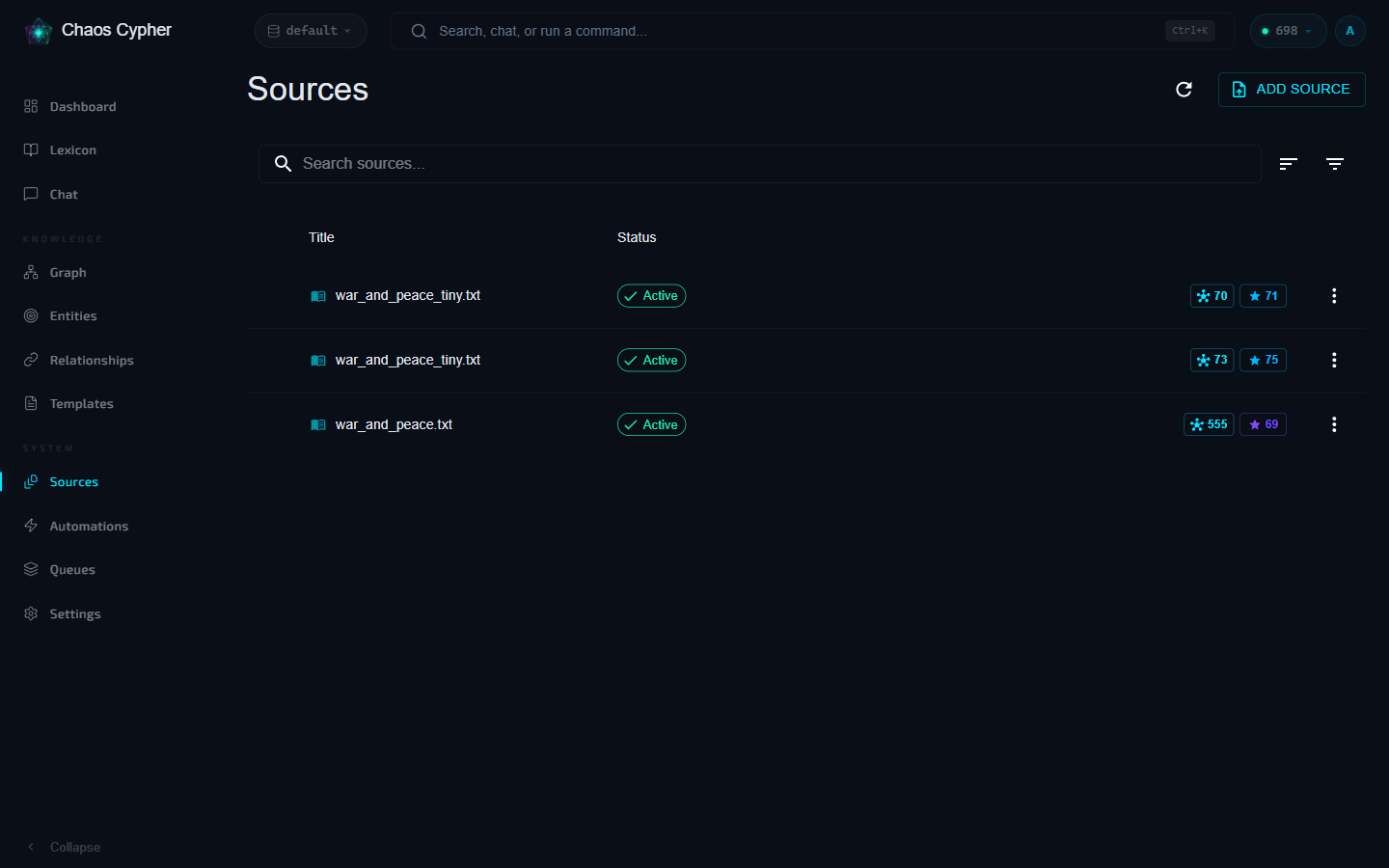
Open the chat dropdown on a source in the Sources list to start a source-scoped conversation. The AI will only search content from those specific documents.
# Scope to a specific document
chaoscypher chat -s "source-id-123" "Summarize this document"

# Scope to multiple sources
chaoscypher chat -s "source-1" -s "source-2" "Compare these papers"
curl -X PATCH http://localhost:8080/api/v1/chats/{chat_id}/scope \
  -H "Content-Type: application/json" \
  -d '{"source_ids": ["source-id-123"]}'
Tag Scoping
Scope by tags to include all sources with matching tags (CLI and API; the web UI scope panel selects individual sources):
- CLI
- API
# Scope to all sources with a tag
chaoscypher chat -t "research" "What are the common themes?"

# Combine source and tag scoping
chaoscypher chat -s "source-1" -t "notes" "Find connections"
curl -X PATCH http://localhost:8080/api/v1/chats/{chat_id}/scope \
  -H "Content-Type: application/json" \
  -d '{"tag_ids": ["tag-id-1", "tag-id-2"]}'
Combining Scopes
You can combine source IDs and tag IDs — the system merges them with deduplication.
Clearing Scope
Remove the scope to return to searching all sources. Scope changes are logged as system messages in the conversation.
Scoped chat is useful when you have many sources but want to ask questions about a specific document or topic. It reduces noise and ensures the AI focuses on relevant content.
Citations
When the AI references information from your documents, responses include citations — links back to the specific source chunks used. Click a citation to see:
- The source document name
- The exact text passage
- Page number and section (when available)
Citations help you verify the AI's answers against your original documents.
Streaming
Chat responses use Server-Sent Events (GET /chats/{id}/events) for real-time streaming. The stream sends these event types:
| Event | Description |
|---|---|
content | Text chunks as they're generated |
thinking_delta | AI reasoning steps (when thinking is enabled) |
thinking | Complete reasoning block emitted after a thinking phase (distinct from the incremental thinking_delta) |
timing_update | Thinking-phase timing payload |
context_info | Context-window usage for the turn (messages in context, tokens) |
iteration_progress | A new tool-calling round started |
tool_calls | Tool invocations during response generation |
cached_tool_calls | Duplicate tool calls that were skipped (already executed this turn) |
tool_start | A single tool began executing |
tool_result | Results from tool calls (with per-tool duration) |
tool_approval_required | A tool call is paused waiting for your approval decision |
tool_rejected | A gated tool call was denied (rejection or timeout) |
warning | Non-fatal notice (answer truncated, context overflow, spend cap, tool limit, stopped by user) |
done | Response complete (includes the final content, citations, and entity references; status is cancelled when you stopped the turn) |
error | Error during generation |
The authoritative typed union of all stream events (ChatSSEEvent) is exposed in the OpenAPI schema via GET /api/v1/chats/_schema/sse_event.
If you close the browser during streaming, the response continues in the background and is saved to the conversation.
Stopping a Response
While the assistant is working, the Send button becomes a red Stop button (or press Esc in the message input). Stopping doesn't throw the work away: the assistant halts at the next step boundary — between tool calls or before its next reasoning round — and whatever it gathered so far is kept and saved as a partial answer with a "stopped at your request" notice. The conversation is immediately ready for your next message.
One caveat: if the assistant is mid-way through writing a single long answer (no tools involved), that answer finishes first — stopping takes effect between steps, not mid-sentence.
Working with Answers
Hover over any message to reveal its action row:
- Copy — copies the message text (code blocks also have their own copy icon in the top-right corner).
- Regenerate (latest answer only) — drops the answer and re-runs the turn from your question. Useful when the model went off track.
- Edit and resend (your messages) — puts the message back in the input; sending replaces it and everything after it with the new question. Clearing the input cancels the edit. This forks the conversation from that point — nothing gets duplicated.
If a turn fails with an error banner, the Retry button re-runs it server-side without re-posting your message.
Exporting a Conversation
The header's download button offers two formats:
- JSON — the full chat object (messages, citations, metadata) for archival or processing.
- Markdown — a readable document with role headings and your citations rendered as numbered footnotes (source filename + quoted sentence).
Finding a Chat
The chat switcher in the header includes a search box that queries the server by title — every conversation is findable no matter how many you have, not just the most recent page.
Tool Approval
By default the assistant runs its tools automatically. Settings → Tool call approval offers two stricter modes:
- ask-on-write — read-only tools (search, traversal) run freely; mutating tools (create/update/delete nodes and edges, document changes) pause and ask for your confirmation.
- always-ask — every tool call asks first.
When a gated tool call occurs, an approval dialog appears in the chat. Approving runs the tool and the answer continues; rejecting tells the model the call was denied so it can answer without it. An unanswered request is automatically denied after the configured timeout (chat.tool_approval_timeout_seconds, default 120 seconds) — tools never run without an explicit yes.
Answer Quality Checks
Two automatic quality layers run on every answer:
- Truncation warnings — if the model's answer was cut off by the token budget, or the conversation outgrew the model's context window, an amber warning appears under the answer explaining what happened and how to work around it (for Ollama: raise the context size under Settings → LLM).
- Citation validation — when enabled (
chat_context.enable_response_validation, on by default), each citation is checked against the retrieved source text and marked with a Verified/Invalid chip.
LLM Configuration
Chat behavior is controlled through LLM settings:
- Provider — Ollama, OpenAI, Anthropic, or Gemini
- Temperature — Controls response creativity (default: 0.3)
- Max tokens — Maximum response length (default: 65536)
- Thinking mode — Enable to see the AI's reasoning process
Configure these in Settings or settings.yaml. See Configuration for details.