Sources
Sources are the foundation of Chaos Cypher. A source is any document — PDF, Word file, web page, image, audio, or video — that you import into the system for indexing, search, and knowledge extraction.
The curl examples on this page use http://localhost:8080, which is the API port for the multi-container development stack. The all-in-one container (the primary install) serves the API on port 80 instead — use http://localhost/api/v1/... there.
Uploading Sources
Single File Upload
- Web UI
- CLI
- Python
- API
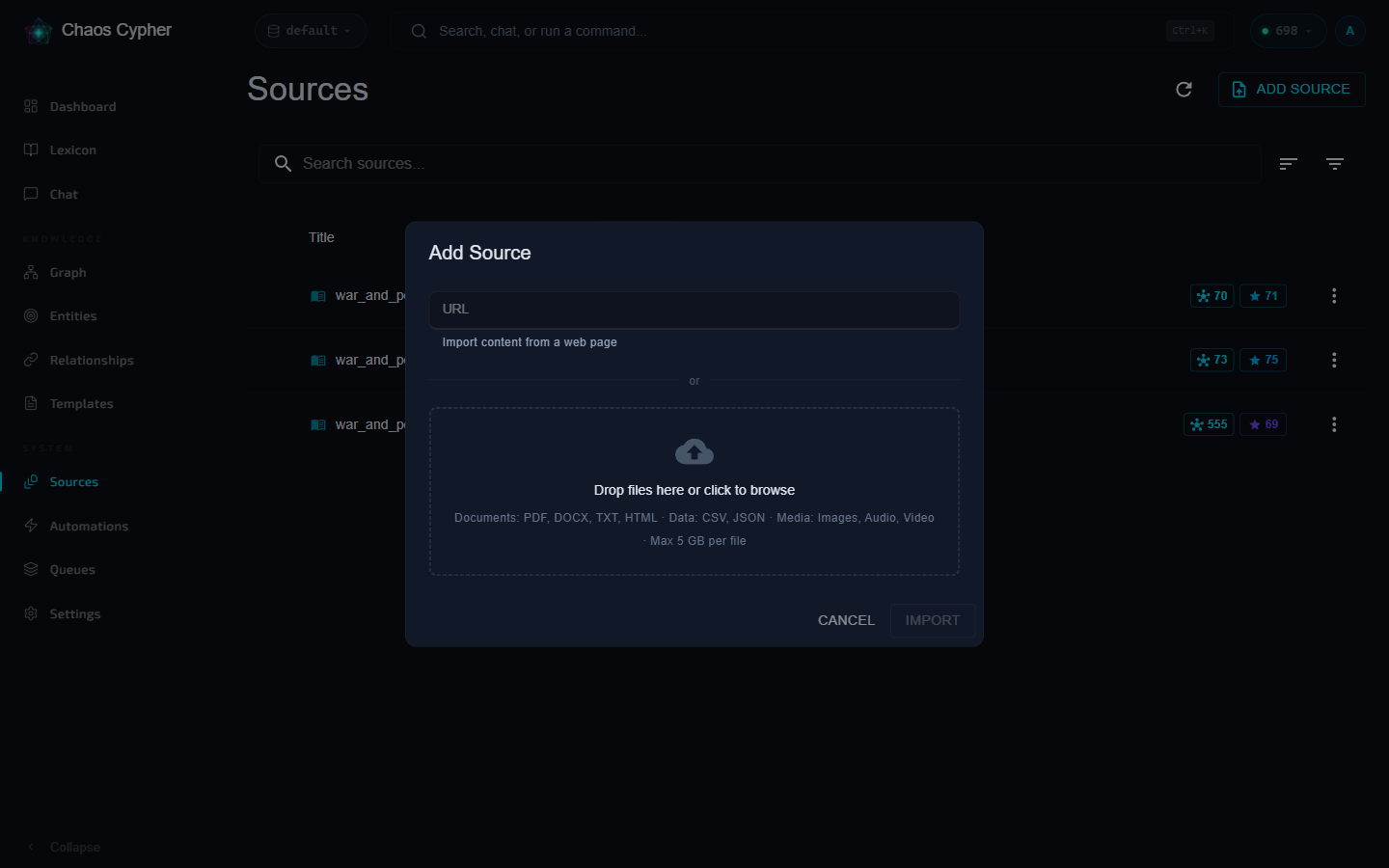
- Navigate to Sources in the sidebar
- Click Add Source to open the Add Source dialog, then drag and drop your file into the drop area or click to browse
- The file enters the processing pipeline automatically
chaoscypher source add document.pdf
The CLI runs the full pipeline (upload → index → extract → commit) with a progress bar for each stage; by default it pauses after indexing to let you confirm the auto-detected extraction domain (skip with --no-confirm).
from chaoscypher_core import ChaosCypher

result = ChaosCypher.add_document_sync("document.pdf")
print(f"Created {len(result.nodes)} nodes, {len(result.edges)} edges")
curl -X POST http://localhost:8080/api/v1/sources \
  -F "file=@document.pdf"
Batch Upload
- Web UI
- CLI
- Python
- API
- Click Add Source on the Sources page
- In the Add Source dialog, select multiple files (up to 20 per batch) or drag and drop them into the drop area
# Multiple files
chaoscypher source add doc1.pdf doc2.txt notes.md

# Entire directory (all supported files)
chaoscypher source add ./research-papers/
from chaoscypher_core import ChaosCypher

files = ["doc1.pdf", "doc2.pdf", "doc3.txt"]
for f in files:
    result = ChaosCypher.add_document_sync(f)
    print(f"{f}: {len(result.nodes)} nodes")
curl -X POST http://localhost:8080/api/v1/sources/batch \
  -F "files=@doc1.pdf" \
  -F "files=@doc2.pdf" \
  -F "files=@doc3.txt"
URL Import
- Web UI
- CLI
- Python
- API
- Click Add Source on the Sources page
- In the Add Source dialog, paste the URL of a web page into the URL field (above the file drop area) and confirm
- The system fetches the page, extracts clean text content, and processes it like any other source
chaoscypher source add https://example.com/article
from chaoscypher_core import ChaosCypher

result = ChaosCypher.add_document_sync("https://example.com/article")
print(f"Created {len(result.nodes)} nodes")
curl -X POST http://localhost:8080/api/v1/sources/url \
  -H "Content-Type: application/json" \
  -d '{"url": "https://example.com/article"}'
The system fetches the page, extracts clean text content, and processes it like any other source. URLs must be HTTP/HTTPS and the extracted content must be at least 50 characters.
Supported File Types
| Category | Formats |
|---|---|
| Documents | PDF, DOCX (Word), EPUB |
| Office | XLSX (Excel), PPTX (PowerPoint) |
| Text | Plain text (.txt), Markdown (.md), Log files (.log) |
| Web / Markup | HTML (.html / .htm / .xhtml), reStructuredText (.rst) |
| Data | CSV, JSON, JSONL, NDJSON |
| Images | JPEG, PNG, GIF, WebP, TIFF, BMP (text extracted via OCR) |
| Audio | MP3, WAV, M4A, FLAC, OGG, WMA, AAC (transcribed to text) |
| Video | MP4, MKV, AVI, MOV, WebM, WMV, FLV (audio extracted and transcribed) |
| Archives | ZIP, TAR.GZ (files extracted and processed individually) |
The default per-file upload cap is 5 GB (batching.max_upload_bytes). Upload routes are exempted from the per-route 128 MB outer body cap (batching.max_request_body_mb) and gated by max_upload_bytes only. To raise the cap, set batching.max_upload_bytes in settings.yaml — nginx's client_max_body_size (including on the internal auth-check subrequest) is rendered from this value at container start, so a single source of truth governs both layers.
Archives are automatically extracted and the system detects the documentation format — Sphinx HTML, Markdown docs (MkDocs, Docusaurus), OpenAPI specs, or mixed files. Each file is processed according to its detected type.
Vision Processing
When enable_vision is enabled during upload, images embedded in PDFs and standalone image files are processed with the configured vision model. The vision model generates textual descriptions of visual content — diagrams, charts, photographs, and other images — which are included in the document chunks. This improves search and RAG quality by making visual content discoverable through text queries.
Vision processing is optional and requires a vision model to be configured in Settings > Models. For sources processed with vision enabled, an image gallery is available on the source detail overview page, showing all extracted images alongside their generated descriptions.
The choice you make at upload time is persisted on the source row, so re-extract and recovery honor it without you having to re-pass the flag.
Upload settings are persistent
Every choice you make on the upload dialog is stored on the source row, not on the in-flight queue payload. That means:
- Recovery after a worker restart re-reads your settings instead of resetting everything to defaults.
- Retry an errored source preserves your normalization, vision, and content-filtering choices.
- Re-extract runs the new extraction with the same settings the source was uploaded with — unless you explicitly override one for the re-extract call.
The persisted fields are:
| Field | What it controls |
|---|---|
auto_analyze | Whether the upload flow auto-queues entity extraction after indexing. |
enable_normalization | Run the cleaner pipeline (encoding fixes, OCR cleanup, paragraph dedup). null means "use the file-type default." |
enable_vision | Use the vision model on images and scanned PDFs. |
content_filtering | Apply domain content-exclusion rules during extraction. Filtered text stays searchable via RAG. |
filtering_mode | Strictness of post-extraction filters: unfiltered / minimal / lenient / balanced / strict / maximum. See Filtering Modes. |
Processing Pipeline
Every source goes through a multi-stage pipeline. The first stage (indexing) runs automatically. The second stage (extraction) is optional and uses AI.
Stage 1: Indexing
Runs automatically after upload. The document is chunked into segments and each chunk is embedded as a vector for semantic search.
| What happens | Output |
|---|---|
| Text extraction from source format | Raw text content |
| Content normalization (optional) | Clean, consistent text |
| Chunking into segments | Configurable size (default ~900 chars) |
| Vector embedding generation | One embedding per chunk |
Time: ~30 seconds for a 100-page PDF.
After indexing, the source is searchable via RAG — you can chat about it and search it immediately, without waiting for extraction.
Confirm the Extraction Domain
By default, extraction doesn't start until you confirm the auto-detected extraction domain. After indexing, an auto-domain source parks at awaiting_confirmation (phase awaiting_input) — it's already searchable via RAG while it waits.
- Web UI — a confirmation dialog shows the detected domain and its ranking; confirm it (or pick a different domain) to start extraction.
- CLI —
chaoscypher source addprompts interactively ("Confirm extraction domain") when run in a terminal. Non-interactive or quiet runs park the source instead; confirm it later withchaoscypher source confirm <SOURCE_ID>, or pass--no-confirmto accept the auto-detected domain and skip the gate. - API — confirm a parked source with
POST /api/v1/sources/{source_id}/confirmation, or bypass the gate at upload time with theauto_confirm=trueform field (defaultfalse).
Forcing a domain at upload (the domain field / --domain flag) skips the gate entirely — there is nothing to confirm.
Stage 2: Entity Extraction (Optional)
Uses an LLM to extract entities (people, organizations, concepts, etc.) and relationships from each chunk.
| What happens | Output |
|---|---|
| Chunk groups sent to LLM | Entity + relationship extraction |
| Template matching | Consistent entity types |
| Deduplication | Merged duplicate entities |
| Relationship mapping | Connections between entities |
| Entity embeddings | Vector embeddings for graph entities |
Time: ~5 minutes for a 100-page PDF (depends on LLM speed).
Controls:
- Extraction depth —
full(comprehensive, default) orquick(faster, fewer entities) - Domain selection — Auto-detect or force a specific domain (e.g., technical, medical, legal)
- Cancel — Extraction can be cancelled mid-process. Completed chunks are preserved and the source reverts to
indexedstatus (RAG still works).
Stage 3: Committing
Automatically runs after extraction. Imports extracted entities and relationships into the knowledge graph.
| What happens | Output |
|---|---|
| Create graph nodes | One node per entity |
| Create graph edges | One edge per relationship |
| Create templates | Node type templates for the graph |
| Link to source | Document node with provenance |
Status Flow
Every source exposes a progress object with a 5-phase summary designed for the UI:
| Phase | Searchable | Meaning |
|---|---|---|
waiting_to_index | No | Pending or failed — nothing useful exists yet |
indexing | No | Chunking and embedding in progress |
awaiting_input | Yes | Indexed and searchable; waiting for you to confirm the auto-detected extraction domain |
extracting | Yes | Indexed and searchable; extraction is optional and may be running |
ready | Yes | Fully committed to the knowledge graph |
The is_searchable flag in progress lets the UI immediately determine whether the source can be queried, without parsing individual status strings.
Internal status values (for debugging and API consumers)
| Status | Maps to | Meaning |
|---|---|---|
pending | waiting_to_index | Uploaded, waiting to start |
indexing | indexing | Chunking and embedding in progress |
vision_pending | indexing | Waiting for vision processing of images |
indexed | extracting | Searchable via RAG, ready for extraction |
awaiting_confirmation | awaiting_input | Searchable via RAG; parked for domain confirmation before extraction |
extracting | extracting | LLM entity extraction in progress |
mcp_extracting | extracting | Model Context Protocol (MCP)-driven entity extraction in progress |
extracted | extracting | Extraction complete, ready to commit |
committing | extracting | Importing entities into knowledge graph |
committed | ready | Fully processed |
error | waiting_to_index | Failed at some stage (check error_message) |
A source at indexed status is already useful — you can search it and chat about it. Extraction adds the knowledge graph layer on top.
For detailed architecture of each pipeline stage, see the Extraction Pipeline Architecture.
See also
- Architecture: Extraction Pipeline — detailed pipeline stages, queue routing, error handling, and content filtering internals
- API reference: Sources — full endpoint reference for upload, extraction management, chunks, citations, and tags
Tags
Tags help organize sources into categories. Each tag has a name, optional color, and optional description.
- Web UI
- CLI
- API
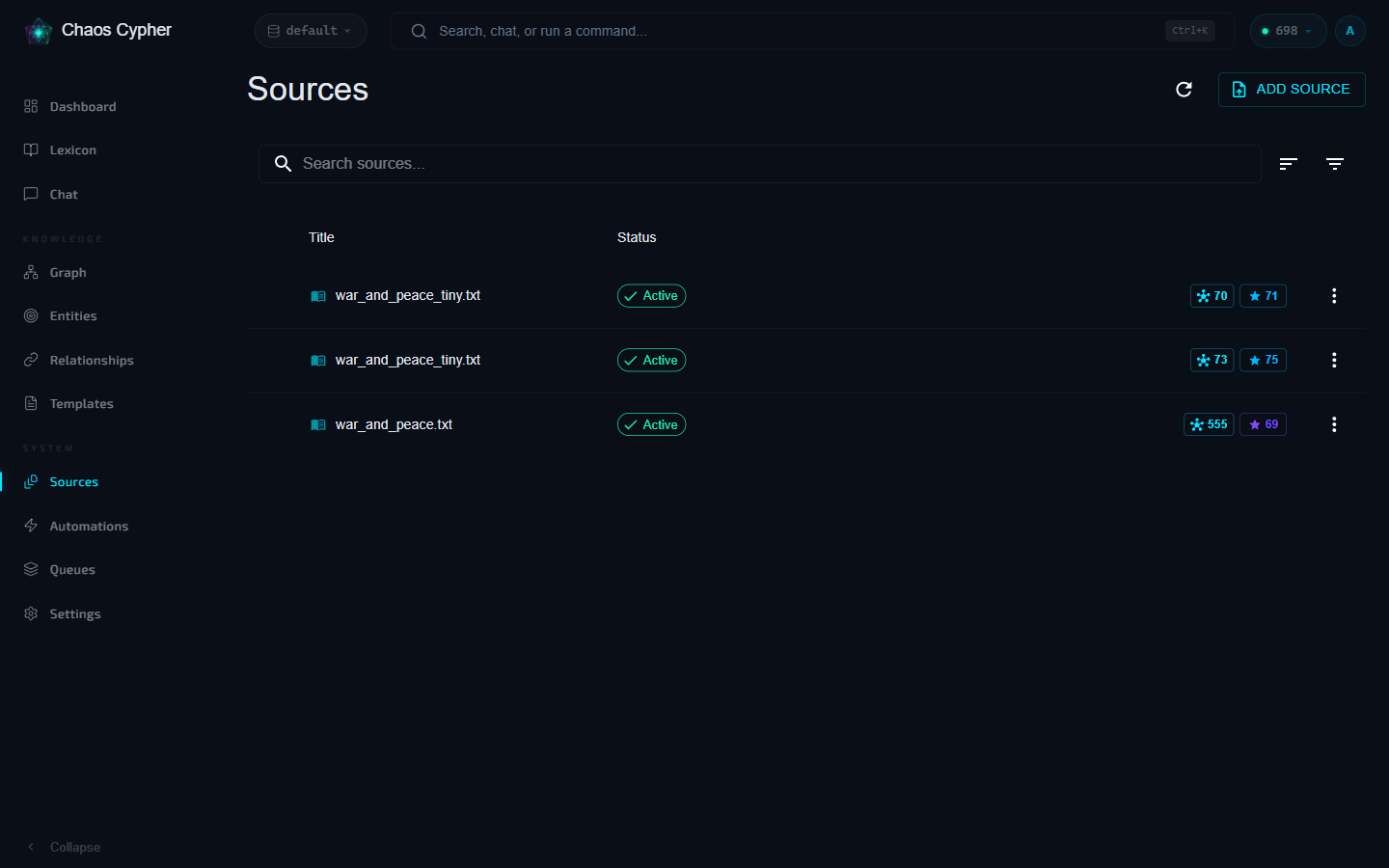
- Create, edit, and delete tags from the Sources page
- Assign tags to sources by clicking the tag icon
- Filter the source list by tag to find related documents
- Tags support inline editing directly in the UI
Tags are managed through the API or Web UI. The CLI supports tag-based scoping in chat:
# Chat scoped to sources with a specific tag
chaoscypher chat -t "research" "Summarize the findings"
# Create a tag
curl -X POST http://localhost:8080/api/v1/sources/tags \
  -H "Content-Type: application/json" \
  -d '{"name": "research", "color": "#1a73e8"}'

# Assign tag to a source
curl -X POST http://localhost:8080/api/v1/sources/{source_id}/tags/{tag_id}
Tags are scoped to the current database — each database has its own set of tags.
Content Filtering
Content filtering removes non-essential content — table of contents, changelogs, legal boilerplate, bibliography sections, and similar noise — before entity extraction. This improves extraction quality by focusing the LLM on meaningful content and reducing token waste.
Key points:
- Enabled by default on all uploads (
content_filtering=true) - Filtered content is only removed from extraction — it remains fully searchable via RAG
- Each extraction domain defines which content categories to exclude
- 15 built-in categories cover common non-essential patterns (TOC, legal, boilerplate, etc.)
- Domains can also define custom regex patterns for domain-specific filtering
To disable content filtering for a specific upload (e.g., when the "boilerplate" content is actually important):
- Web UI
- API
Uncheck Content Filtering in the upload dialog.
curl -X POST http://localhost:8080/api/v1/sources \
  -F "file=@document.pdf" \
  -F "content_filtering=false"
For details on the filtering pipeline, categories, and custom patterns, see the Content Filtering section in the Extraction Pipeline Architecture.
Content Normalization
Uploaded content is normalized to fix common issues:
- Encoding fixes (UTF-8 normalization)
- Whitespace normalization (consistent line breaks, trimmed excess)
- OCR artifact cleanup
Normalization defaults off for .csv, .tsv, .json, .jsonl, .ndjson, .xml. You can override per-upload.
To override the default for a specific file:
# Force normalization on for a CSV
curl -X POST http://localhost:8080/api/v1/sources \
  -F "file=@data.csv" \
  -F "enable_normalization=true"

# Force normalization off for a PDF
curl -X POST http://localhost:8080/api/v1/sources \
  -F "file=@report.pdf" \
  -F "enable_normalization=false"
Duplicate Detection
When uploading with skip_duplicates=true, the system computes a SHA-256 hash of the file content and skips files that already exist in the database. This prevents accidentally importing the same document twice.
Managing Sources
Enable/Disable
Toggle a source's enabled flag to include or exclude it from:
- Knowledge graph visibility
- AI chat context
- Search results
- Web UI
- CLI
- API
Toggle the enable/disable switch on any source in the Sources list.
Source enable/disable is managed via the API or Web UI.
curl -X PATCH http://localhost:8080/api/v1/sources/{source_id} \
  -H "Content-Type: application/json" \
  -d '{"enabled": false}'
Disabling a source doesn't delete it — the data is preserved and can be re-enabled at any time.
Deletion
Deleting a source permanently removes:
- The source file record
- All document chunks and embeddings
- Associated citations
- Extraction job data
- Web UI
- CLI
- API
Click the delete button on a source and confirm the deletion.
# Delete with confirmation prompt
chaoscypher source delete SOURCE_ID

# Skip confirmation
chaoscypher source delete SOURCE_ID --force
curl -X DELETE http://localhost:8080/api/v1/sources/{source_id}
Deletion is permanent and cannot be undone. Graph entities cited only by this source are deleted along with it (and removed from the search index); entities also cited by other sources remain in the knowledge graph.
Abort Processing
If a source is stuck or you need to stop processing:
- Cancel extraction — Stops entity extraction, preserves completed chunks, reverts to
indexed - Abort all processing — Cancels any in-progress stage and marks the source with an error
Monitoring Extraction
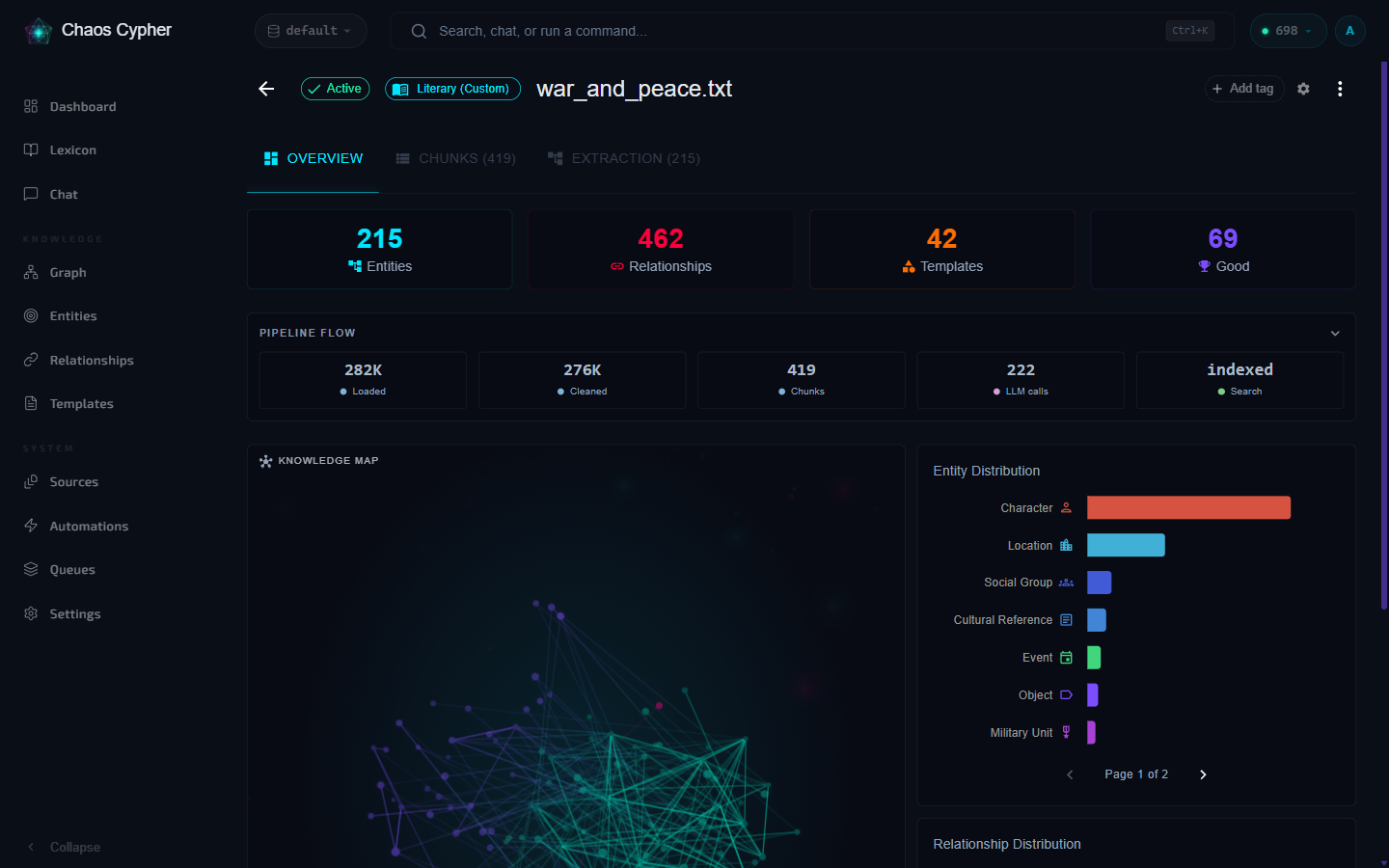
For detailed extraction monitoring, you can view:
- Task list — Individual chunk extraction tasks with status, timing, and entity counts
- Stats — Aggregate statistics (average tokens, duration, entities per chunk)
- Charts — Visual progress data for the extraction pipeline
- Web UI
- CLI
- API
Open a source's detail view to see extraction progress, task breakdown, and statistics.
# View source details including extraction status
chaoscypher source get SOURCE_ID
curl http://localhost:8080/api/v1/sources/{source_id}