Knowledge Graph
The knowledge graph is where extracted knowledge lives as structured data. Entities become nodes, connections become edges, and templates define the schema for each type.
Nodes
Nodes represent entities extracted from your documents — people, organizations, concepts, technologies, locations, or any other named entity.
Properties
Each node has:
| Field | Description |
|---|---|
| Label | Display name (e.g., "Albert Einstein") |
| Template | Type schema defining properties (e.g., "Person") |
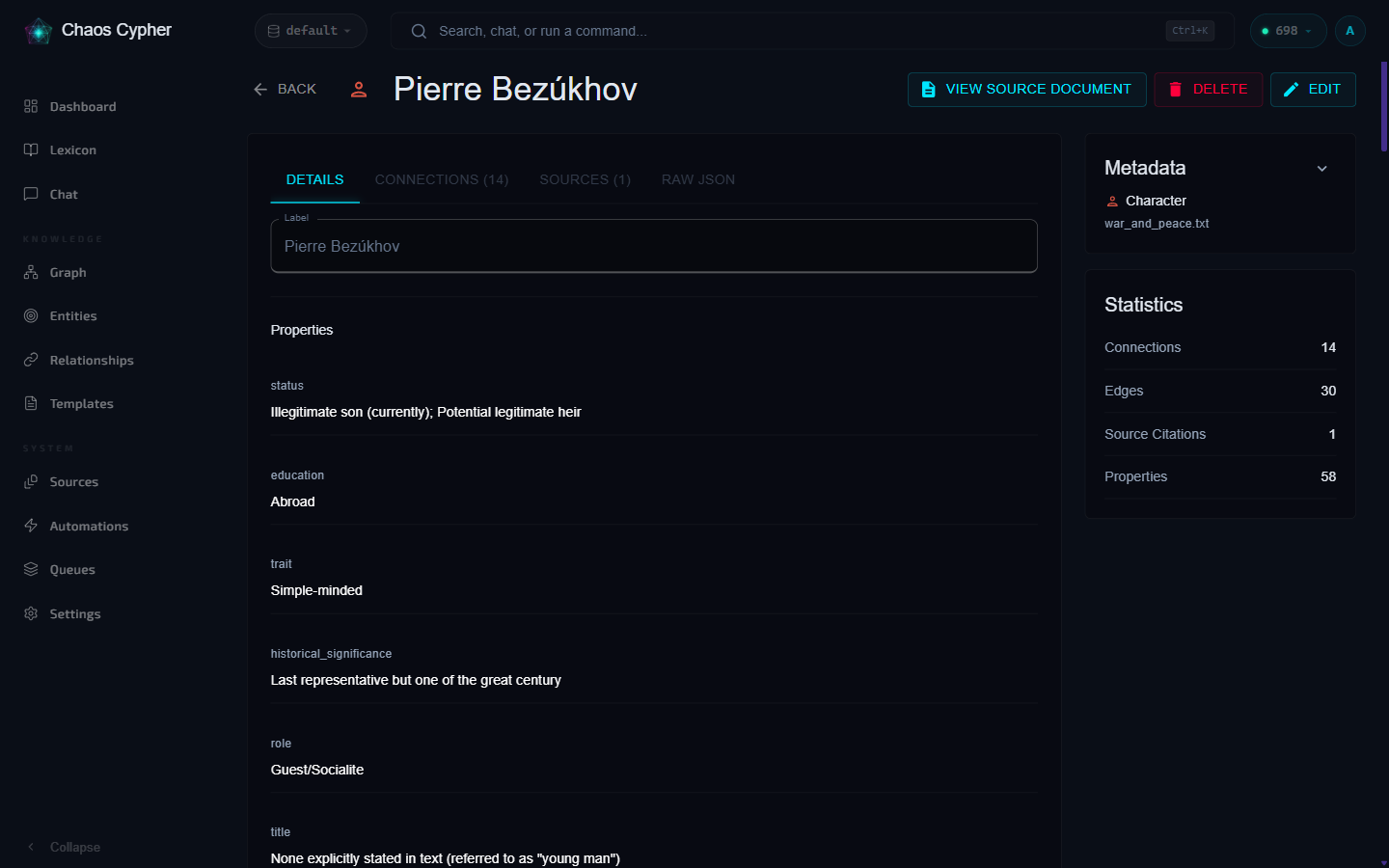
| Properties | Key-value pairs defined by the template |
| Position | X/Y coordinates on the graph canvas |
| Embedding | Vector representation for semantic search |
Creating Nodes
Nodes are created in two ways:
- Automatic extraction — AI extracts entities from your documents during the extraction pipeline
- Manual creation — Create nodes directly through the graph canvas or API
- Web UI
- CLI
- Python
- API
- Open the Graph page
- Open the speed dial (the + button in the bottom-left corner) and choose Create Item — or right-click the canvas and choose Create Item Here
- Select a template, enter a label, and fill in properties
# Create with required flags
chaoscypher graph node create -t Person -l "Marie Curie"

# Create with properties
chaoscypher graph node create -t Person -l "Marie Curie" \
  -p nationality="Polish-French" -p field=Physics

# Interactive wizard (prompts for everything)
chaoscypher graph node create --interactive
from chaoscypher_core import Engine

with Engine("./data/databases/default") as engine:
    node = engine.add_node("Person", "Marie Curie", properties={
        "nationality": "Polish-French",
        "field": "Physics",
    })
    print(f"Created: {node.label} ({node.id})")
curl -X POST http://localhost:8080/api/v1/nodes \
  -H "Content-Type: application/json" \
  -d '{
    "template_id": "person-template-id",
    "label": "Marie Curie",
    "properties": {
      "nationality": "Polish-French",
      "field": "Physics"
    }
  }'
Node Statistics
Each node tracks:
- Edge count — Number of relationships connected to this node
- Citation count — Number of source references supporting this node
- Relationship types — Types of connections to other nodes
Citations
Nodes extracted from documents maintain citations — links back to the specific source chunks that mention them. Citations include:
- The source document and chunk
- The relevant text passage
- Confidence score
- Page number and section (when available)
View citations for any node to see the evidence behind extracted knowledge.
Edges
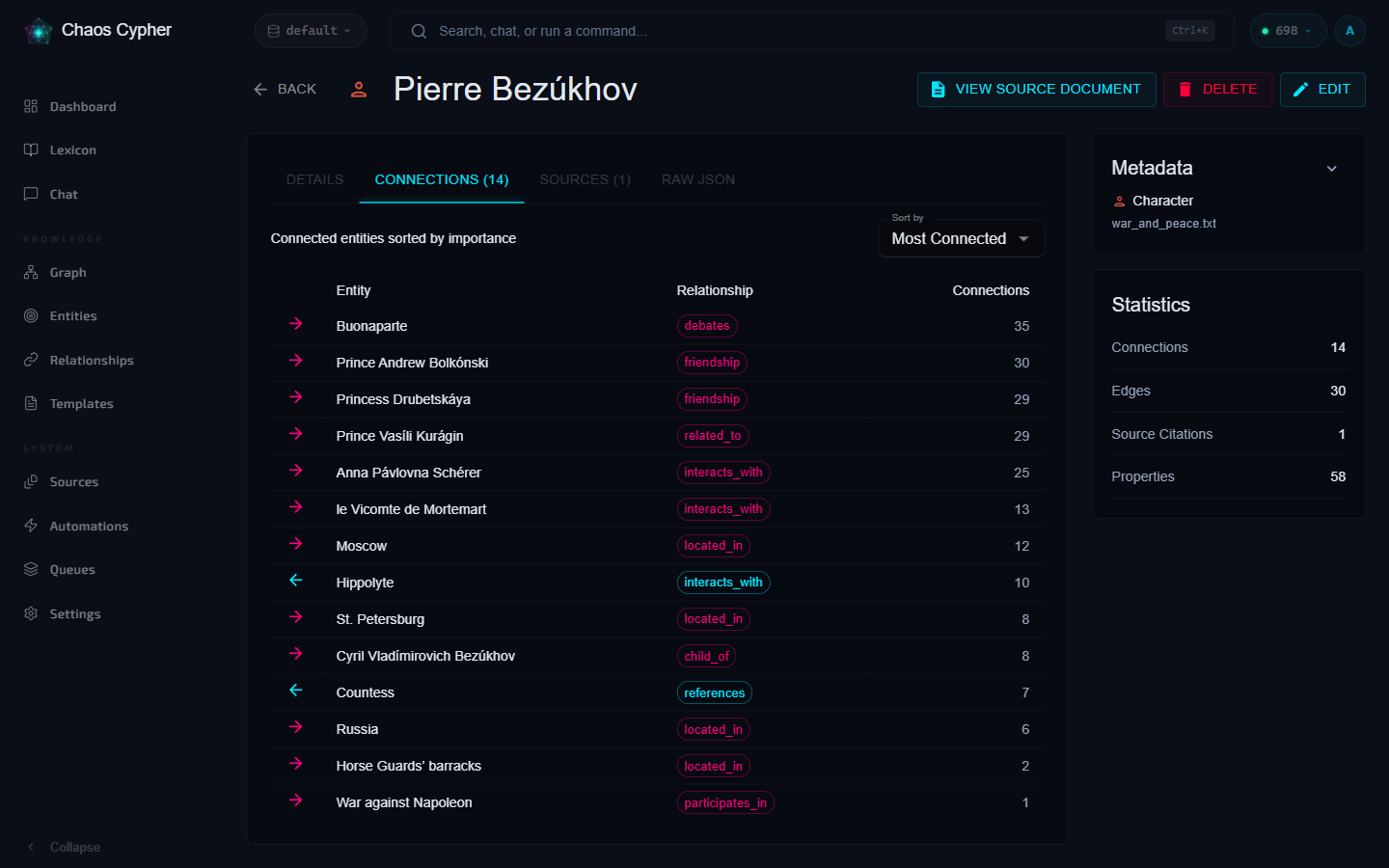
Edges represent relationships between nodes — "works at", "located in", "invented", etc.
Properties
Each edge has:
| Field | Description |
|---|---|
| Label | Relationship type (e.g., "works at") |
| Source Node | Starting node of the relationship |
| Target Node | Ending node of the relationship |
| Template | Edge type template |
| Properties | Additional relationship metadata |
Creating Edges
Like nodes, edges are created through extraction or manually:
- Web UI
- CLI
- Python
- API
- On the Graph page, open the speed dial (the + button in the bottom-left corner) and choose Create Link
- Select the source and target nodes, relationship type, and any properties
# Create a directed link
chaoscypher graph link create nd_person1 nd_company1 --type "works_for"

# Create with a custom label
chaoscypher graph link create nd_node1 nd_node2 \
  -t "influences" -l "strongly influences"

# Create bidirectional links (creates two edges)
chaoscypher graph link create nd_node1 nd_node2 \
  -t "related_to" --bidirectional
from chaoscypher_core import Engine

with Engine("./data/databases/default") as engine:
    alice = engine.add_node("Person", "Alice")
    bob = engine.add_node("Person", "Bob")
    engine.add_edge("knows", alice, bob)
curl -X POST http://localhost:8080/api/v1/edges \
  -H "Content-Type: application/json" \
  -d '{
    "template_id": "edge-template-id",
    "source_node_id": "node-1-id",
    "target_node_id": "node-2-id",
    "label": "discovered"
  }'
Templates
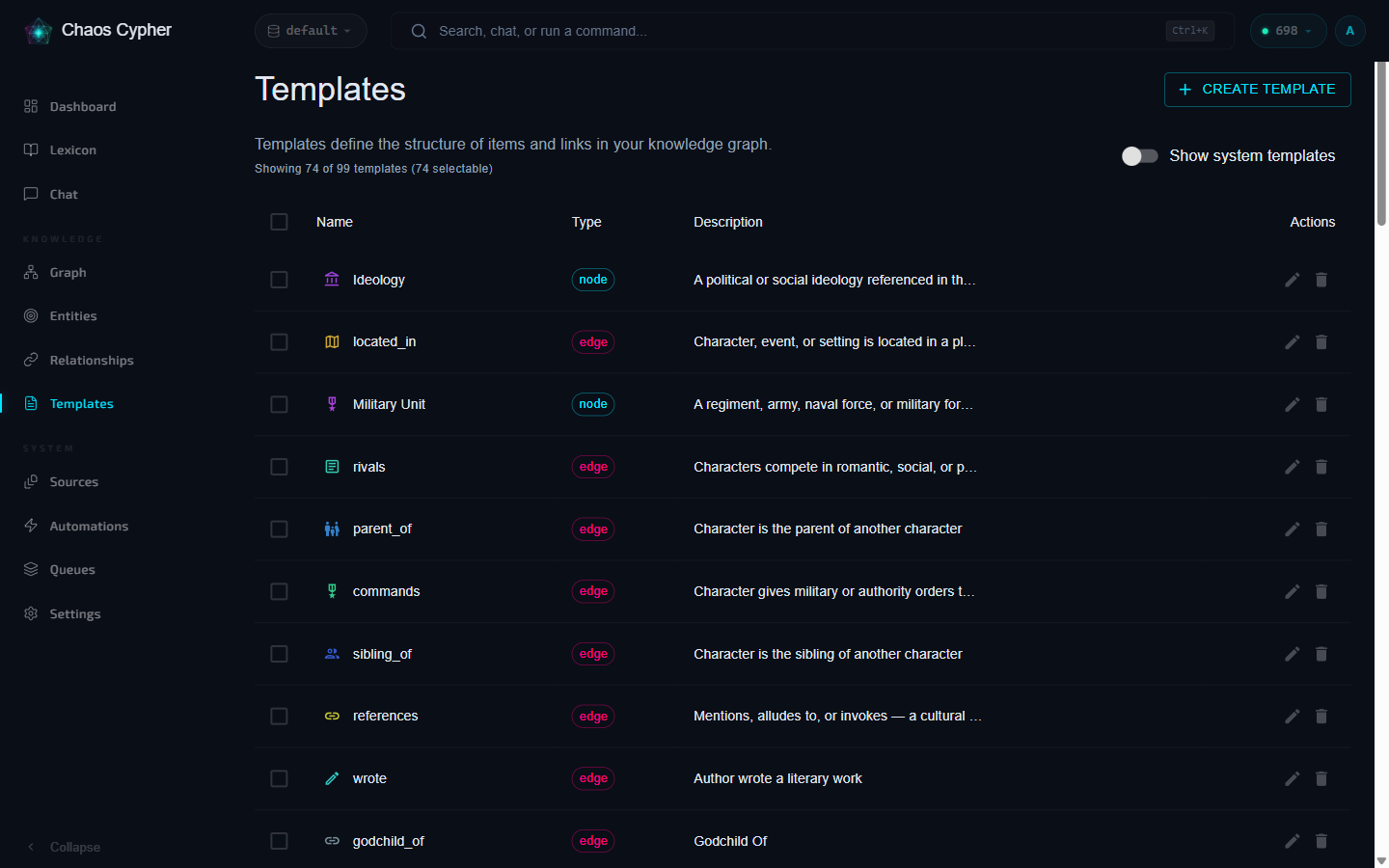
Templates define the schema for nodes and edges. They specify what properties an entity type should have. Browse, search, and edit templates from the Templates page in the sidebar.
Node Templates
A node template defines an entity type:
{
  "name": "Person",
  "description": "A human individual",
  "template_type": "node",
  "properties": [
    {"name": "nationality", "display_name": "Nationality", "property_type": "string", "required": false},
    {"name": "birth_date", "display_name": "Birth Date", "property_type": "string", "required": false},
    {"name": "occupation", "display_name": "Occupation", "property_type": "string", "required": false}
  ]
}
Edge Templates
An edge template defines a relationship type:
{
  "name": "Employment",
  "description": "Employment relationship between person and organization",
  "template_type": "edge",
  "properties": [
    {"name": "start_date", "display_name": "Start Date", "property_type": "string", "required": false},
    {"name": "role", "display_name": "Role", "property_type": "string", "required": false}
  ]
}
Template Lifecycle
- Templates are created automatically during entity extraction (based on detected entity types)
- You can also create templates manually before extraction to guide the schema
- Deleting a template requires confirmation if nodes or edges are using it (use
force=trueto override) - Template embeddings can be regenerated for improved semantic matching
Templates also support icon and color fields for visual identification. The icon and color are displayed on graph nodes, entity cards, distribution charts, and extraction views, making it easy to distinguish entity types at a glance.
Templates created during extraction reflect the AI's understanding of entity types. You can edit templates after extraction to refine the schema for your domain.
Graph Canvas
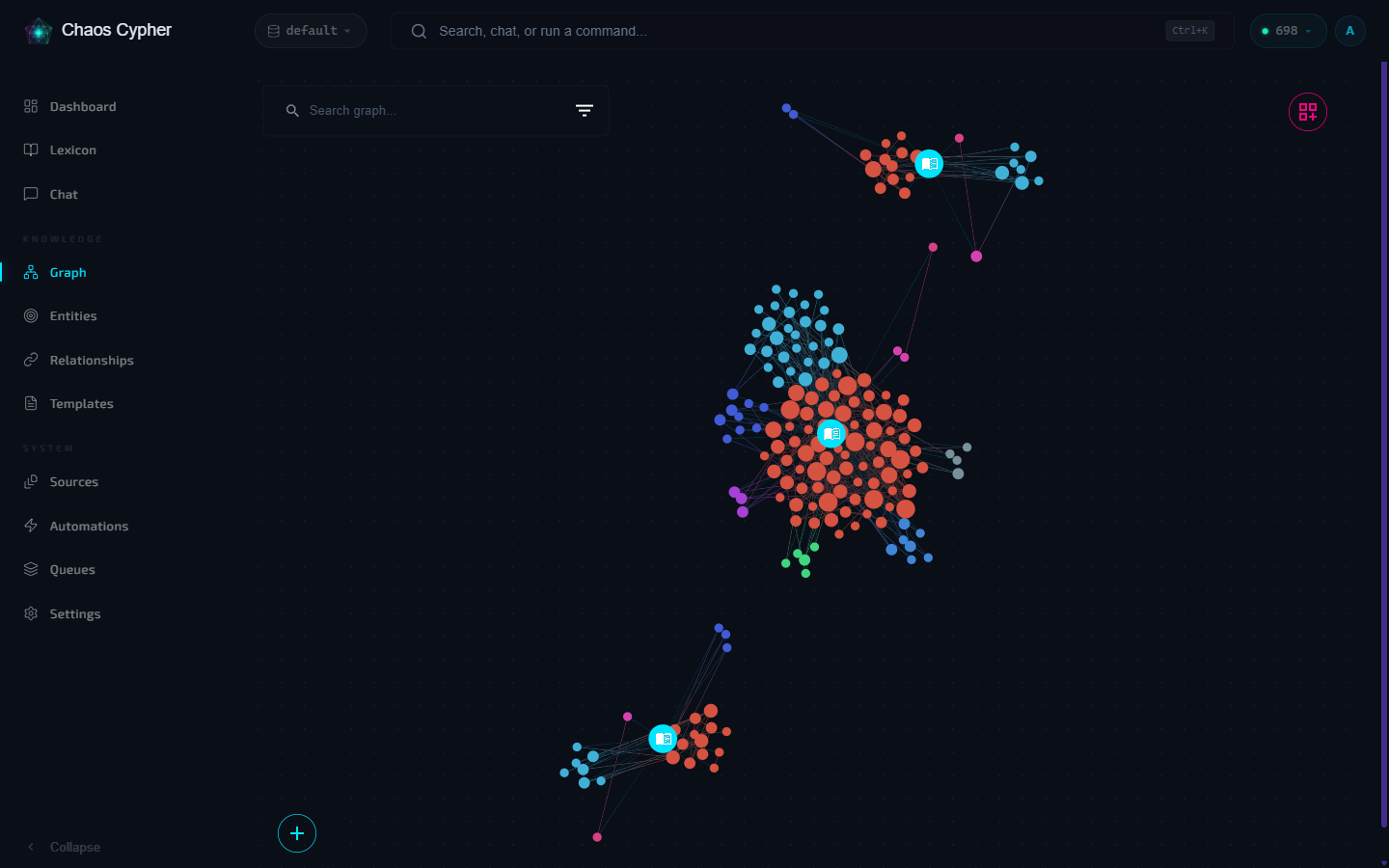
The web UI provides an interactive graph canvas for exploring the knowledge graph.
Navigation
- Pan — Click and drag the background
- Zoom — Scroll wheel or pinch gesture
- Select — Click a node to view its details
Exploring Connections
Click any node to see:
- Its properties and template type
- Connected nodes (neighbors) with relationship labels
- Source citations from extracted documents
- Edge count and relationship type distribution
The connections panel shows directly connected nodes, sortable by edge count, label, or relationship type.
Performance
The graph canvas uses a bulk API endpoint (/api/v1/graph/canvas) to load all nodes, edges, and templates in a single request with minimal data — only the fields needed for rendering (no properties, embeddings, or timestamps). This keeps load times fast even for large graphs.
For extremely large graphs, rendering is capped at 5,000 nodes and 15,000 edges to prevent browser memory issues. If your graph exceeds these limits, the canvas will show a truncated view. These limits are configurable in settings.yaml under pagination.canvas_max_nodes and pagination.canvas_max_edges.
Source Filter
The graph canvas includes a source document filter that lets you narrow the view to only entities and relationships extracted from specific source documents. Use the source filter control to select one or more sources, and the graph will display only the relevant subset of nodes and edges.
Search
Use the graph search bar to find specific entities by label. Results highlight matching nodes on the canvas.
Batch Operations
For bulk changes, batch operations are processed asynchronously:
- Batch create — Create multiple nodes or edges at once
- Batch update — Update properties across multiple entities
- Batch delete — Remove multiple nodes or edges
Batch operations are queued and processed in the background. Monitor progress through the queue monitor.
Graph Storage
The knowledge graph is persisted in app.db alongside all other application data. Three patterns serve reads at different depths: 1-hop neighbor lookups go through indexed SQL on graph_edges; multi-hop algorithms (PageRank, shortest path, community detection, betweenness) load the graph into a rustworkx compiled-Rust graph and run there; dashboard summaries read a precomputed snapshot row.
| Component | Description |
|---|---|
| Database | Nodes, edges, and templates stored in app.db tables (graph_nodes, graph_edges, graph_templates) |
| 1-hop SQL | Indexed lookups on source_node_id / target_node_id for neighbor queries |
| Graph algorithms | rustworkx (compiled Rust) for shortest path, PageRank, components, bridges, centrality |
| Dashboard snapshot | graph_snapshots row with a precomputed GraphBreakdown payload, rebuilt after commits |
The storage backend is pluggable — SQLite ships as the default. Graphs are fully isolated between databases; switching databases loads a completely different graph.
For schema details, code examples, and trade-offs, see the architecture page: Knowledge Graph Storage.
Source Groups
When you import standalone images and extract entities, the resulting nodes can appear disconnected in the graph — the LLM may not produce relationships between them. Source groups solve this by visually grouping entities that were extracted from the same image.
How It Works
- Each committed image source with extracted entities gets a virtual source group node in the graph canvas
- Source group nodes are not stored in the database — they exist only in the visualization layer
- They don't affect search, GraphRAG, or any graph traversal operations
Interacting with Source Groups
| Action | Result |
|---|---|
| Double-click source group node | Toggle expand/collapse |
| Right-click source group node | Context menu: Expand/Collapse, View Source Document |
| Right-click canvas | Expand All / Collapse All Source Groups |
| Click source group node | Properties panel shows source metadata |
| Drag source group node | All member entities move together |
Collapsed vs Expanded
Collapsed (default): Only the source group node is visible. Member entities with connections to other parts of the graph stay visible (they're "pulled out" of the group). Isolated entities are hidden.
Expanded: All member entities are visible with thin provenance lines connecting them to the source group node. Semantic edges between members are also visible.
Provenance on Entity Nodes
When you click an entity that belongs to a source group, the properties panel shows an "Extracted from" section with the source image name. Clicking it selects the source group node in the graph.