Automate Your Knowledge Pipeline: Triggers, Workflows, and AI Tools

Most knowledge management tools treat you like a filing clerk. Upload a document, wait for extraction, manually review entities, fix errors, tag things, connect things. Then do it all again for the next document. And the next. And the next fifty.
This is fine when you have ten documents. It falls apart at a hundred. It becomes genuinely painful at a thousand. The bottleneck is never the AI -- it's the human loop. Every document requires your attention, your judgment calls, your clicks. The extraction might take thirty seconds. Your review and cleanup take ten minutes.
Chaos Cypher's workflow engine exists to close that gap. You define a processing pipeline once -- what to extract, how to validate it, where to send notifications -- and every new document flows through it automatically. No babysitting. No repetitive clicking. You set the rules, the system follows them.
This isn't a cron job bolted onto the side. It's a proper workflow engine with event-driven triggers, conditional branching, step-to-step data passing, and composable AI tools. Let me walk you through how it works.
A Concrete Workflow: Auto-Processing Research Papers
Abstractions are boring. Let's look at a real workflow you might build: automatically processing research papers as they're uploaded.
Here's the pipeline:
Trigger: Extraction commits new entities to the graph (node.create event fires) -- the signal that a freshly uploaded paper has finished processing. (You can also invoke the workflow manually or through the API.)
Step 1 -- AI Prompt: Summarize the document in three sentences. The ai.prompt tool sends the document text to your configured LLM with instructions to produce a concise summary. If the document is long, it automatically chunks the text and processes sections in parallel, then merges the results.
Step 2 -- AI Extract JSON: Pull out structured metadata. Authors, publication date, journal name, key findings, methodology type. The ai.extract_json tool takes the document text and a JSON schema defining exactly what you want, then returns validated structured data. It retries if the extraction doesn't match the schema.
Step 3 -- Conditional: Check if this is a clinical study. The logic.conditional tool evaluates whether {{steps.extract_metadata.extracted_data.methodology_type}} equals "clinical_trial". If true, the workflow branches to run additional medical-domain extraction. If false, it skips ahead.
Step 4 -- HTTP Request: Post a notification to a Slack webhook with the summary from Step 1 and the metadata from Step 2. The http.request tool sends a POST to your webhook URL with a JSON body containing {{steps.summarize.result}} and {{steps.extract_metadata.extracted_data}}.
Notice the {{steps.summarize.result}} syntax. That's the interpolation engine at work. Every step's output is keyed by the step's ID -- reference it as {{steps.<step_id>.<field>}} from any later step. The IDs here (summarize, extract_metadata) are placeholders: IDs are instance-specific, so check a step's actual ID in the builder (or via GET /api/v1/workflows/{id}) before wiring references -- and re-check after importing a workflow, because the export format does not carry step IDs, so import assigns fresh ones and cross-step references in configurations must be updated. You can reference {{inputs.<field>}} for the data the workflow was invoked with, {{steps.extract_metadata.extracted_data.authors}} for a nested field from a previous step, or even {{steps.check_clinical.branch_taken}} to see which conditional path was followed. The interpolation preserves types too -- if a previous step returned a number, you get a number, not the string "42".
This entire pipeline runs without human intervention. Upload a PDF, walk away, come back to a summarized, metadata-tagged, conditionally-processed document with a Slack notification waiting for you.
Under the Hood: 10 Built-In Tools
The workflow engine ships with ten built-in tools organized into five categories. Each tool has a defined input schema and output schema, so the system validates your configuration before anything runs.
| Category | Tools | What They Do |
|---|---|---|
| AI | ai.prompt, ai.extract_json, ai.vector_search, ai.generate_embedding | LLM interactions with chunking support, structured JSON extraction with schema validation and retries, semantic search across your knowledge graph, vector embedding generation for entities |
| Data | data.extract, data.merge | Pull values from nested objects using dot-notation paths (user.addresses.0.city), merge multiple dictionaries with shallow or deep strategies |
| Logic | logic.conditional, logic.loop | If/then branching with safe expression evaluation, iterate over collections with configurable limits |
| HTTP | http.request | External API calls with all HTTP methods, bearer/basic auth, configurable timeouts, and SSRF protection that blocks localhost access |
| Templates | templates.list | Query your knowledge graph schema to discover available node templates |
Three details that make these reliable enough to run unattended: ai.prompt automatically chunks documents that exceed the model's context window, processes the chunks in parallel, and merges the results; ai.extract_json validates the LLM's output against your JSON schema and retries on mismatch; and http.request validates URLs before sending (https/http only, localhost blocked against SSRF) while supporting all standard methods and auth schemes. ai.vector_search is the interesting one for graph-aware pipelines -- workflows can semantically query existing knowledge, enabling steps like "find entities similar to what we just extracted and check for duplicates."
How Triggers Work
Triggers are the entry point for automated workflows. They listen for events in the system and fire workflows when conditions are met.
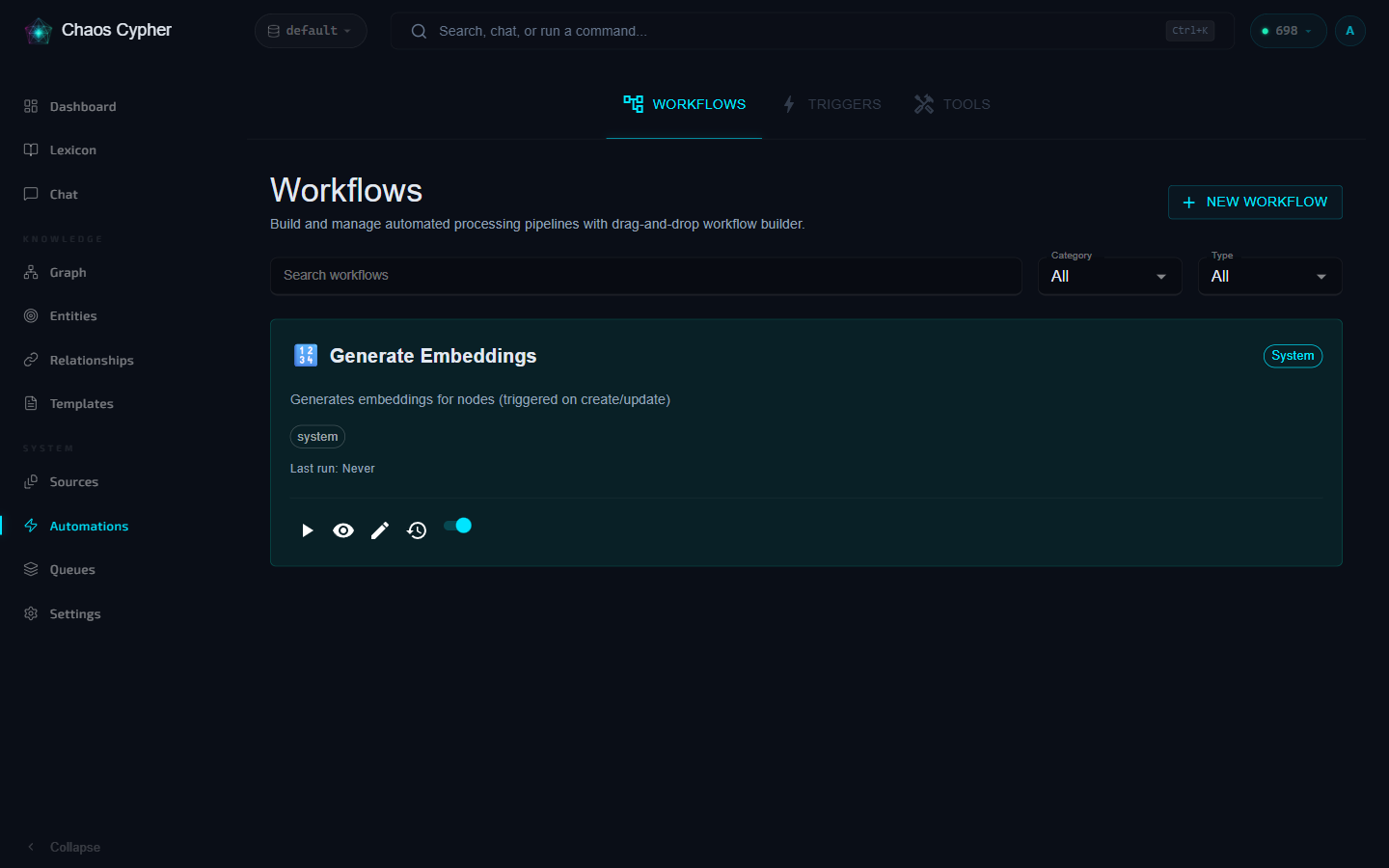
Event sources define what happened. Two are live today: node.create (a new node was committed to the graph) and edge.create (a new relationship was committed) -- both fire on the extraction-commit path. Other event sources, like file-upload and import-complete, are selectable in the builder but not yet emitted by the engine. The system ships with a built-in auto-embedding trigger -- nodes created when an extraction commits to the graph automatically get vector embeddings generated.
Filters let you narrow the scope, using exact key-value matching against the event data. A trigger on node.create with a filter {"entity_type": "node"} fires only for node events. The node.create payload currently carries entity_type and entity_id, so filters on other keys (like a template id) can never match -- the engine logs a warning when a trigger is wired to a structurally impossible filter.
Statistics tracking gives you visibility. Every trigger execution records success/failure status, execution time, and error messages. You can see your success rate, average execution time, and recent execution history -- useful for debugging workflows that occasionally fail.
The "Expose as AI Tool" Feature
Here's where things get composable. Any workflow can be exposed as a callable AI tool by setting expose_as_ai_tool: true and defining input/output schemas. Once exposed, that workflow appears alongside the built-in tools and can be used as a step in other workflows.
Think about what this enables. You build a workflow that extracts and validates medical terminology. You expose it as a tool. Now your "process research papers" workflow can call it as Step 3 instead of hardcoding medical-domain logic. You have a workflow that enriches person entities by cross-referencing external APIs? Expose it, and any other workflow can use it.
Workflows calling workflows. Each one focused on a single job, composed together into pipelines of arbitrary complexity. The step type workflow (alongside system_tool and user_tool) tells the engine to execute another workflow as a step, passing inputs and receiving outputs just like any other tool.
Workflow Portability
Workflows export to a version-stamped, self-describing JSON file -- the definition, all steps, all configurations, no hidden state, no implicit database IDs. Import validates the version and resolves every referenced tool against the target instance's registry before creating anything, so a missing tool produces a clear error instead of a broken workflow. Export from your laptop, import on a server, share with a colleague.
Try It Yourself
The fastest way to see the workflow engine in action is to look at the export format. Here's a minimal workflow that summarizes documents on upload:
{
  "version": "1.0",
  "workflow": {
    "name": "Summarize on Upload",
    "description": "Auto-summarize new documents when uploaded",
    "input_schema": {
      "type": "object",
      "properties": {
        "document_text": {
          "type": "string",
          "description": "The document content to summarize"
        }
      },
      "required": ["document_text"]
    },
    "output_schema": {
      "type": "object",
      "properties": {
        "summary": {
          "type": "string",
          "description": "Three-point summary of the document"
        }
      }
    }
  },
  "steps": [
    {
      "step_number": 1,
      "name": "Summarize Document",
      "tool_type": "system_tool",
      "tool_id": "ai.prompt",
      "configuration": {
        "prompt": "Summarize this document in 3 key points:\n\n{{inputs.document_text}}",
        "output_format": "text"
      }
    }
  ]
}
This is everything the system needs. The version field ensures forward compatibility. The input_schema and output_schema define the contract. The steps array contains the pipeline.
Each step specifies its tool_type (system_tool, user_tool, or workflow), a tool_id that references a registered tool, and a configuration object whose shape matches the tool's input schema. The {{inputs.document_text}} template variable gets resolved at execution time with the inputs the workflow was invoked with.
To wire it up, create a trigger with the event source (like node.create), link it to your workflow, and optionally add filters. From there the engine scales with you: steps can declare depends_on, continue_on_error, max_retries (per-step, falling back to the workflow-level default), and timeout_seconds; imports handle name conflicts (fail/skip/rename) and can land inactive for a test run first. The workflows API reference documents the step fields and import options.
One more thing worth knowing before you trust a pipeline to run unattended: every run produces an execution record -- status, inputs, outputs, per-step timing, and which step failed and why. When a workflow fails at 3am, you don't guess. You look at the execution detail, see that Step 3 timed out after 120 seconds waiting for the LLM, and adjust accordingly.
What's Next
The workflow engine is designed to grow. The tool system uses a plugin architecture -- the same pattern that powers Chaos Cypher's loader plugins, domain plugins, and LLM providers. Custom tool plugins in Python shipped: drop a *_plugin.py file in data/plugins/tools/ implementing tool_id, category, name, description, input_schema, and an execute method, and it auto-registers on startup (user plugins even override built-ins with the same tool_id). See the tool plugins guide for the full interface.
More trigger event sources are coming as the platform grows. Scheduling (run a workflow every Tuesday at 9am) and webhook triggers (fire a workflow from an external system) are natural extensions of the existing event-driven architecture.
If you've built an interesting automation workflow -- whether it's a multi-step research pipeline, a quality assurance checker, or an integration with external tools -- I'd genuinely like to hear about it. The export format makes sharing straightforward: export your workflow, share the JSON, and someone else can import it and adapt it to their use case. That's the whole point of portability.
For the full API reference and detailed configuration options, check out the workflow documentation. The built-in system workflows (like auto-embedding on node create) are also good starting points -- export them and study the step configurations to see how the engine's own automation is wired together.